Start
Your first chapter
From signing up to a lettered chapter you can download, one screen at a time.
This page takes one comic chapter from page images to lettered pages. A new account starts with 1,000 free credits, given once, with no card. A page through all four steps costs 10 credits in one language on the Standard model, so that is 100 pages.
Create your account
Open the sign-up page, enter an email and a password of at least 8 characters, and press Create account. You land in your workspace, on a checklist called Set up your workspace.
Start a project
Press New project. A project is one title: its chapters share its settings and its glossary. The form asks four things, one screen each.
- Basics. The name, and the type: Comic for page images, Novel for story text.
- Languages. Every language the chapters are translated into. You do not pick the original language. More can be added later in the project’s settings.
- Process. How far a chapter goes: Text, Translate, Clean or Letter. Keep Letter for a finished chapter. The four steps says what each one gives you. Then the translation model, each listed with its price a page, and the reading direction: Right to left for manga, Left to right for comics, Long strip for a webtoon.
- Review. What a page costs, your balance and how many pages it covers. Press Create project.
Unless your workspace defaults say otherwise, a new project starts on the Natural model, at 20 credits a page. Pick Standard on the Process screen to pay 10.
The type, the process and the reading direction are fixed once the project is created.
Upload the chapter
The project opens on its Chapters tab. Click Upload a chapter, and the Upload chapter panel opens. Drop the page images or a .zip into it. The pages are put in order by file name and shown as thumbnails, and Chapter number is filled in for you.
The button at the bottom reads Upload chapter, then “up to” a number of credits: the most this chapter can cost. Press it. The chapter starts by itself when the last page has been sent, and the panel closes. File types and page sizes are in Uploading pages.
Watch the table fill in
The chapter is now a row in the table, with a column for each step. Translate and Letter hold one chip for each language. A chip with a count, such as 18/24, is running. An outlined chip is waiting. A cyan chip is done.
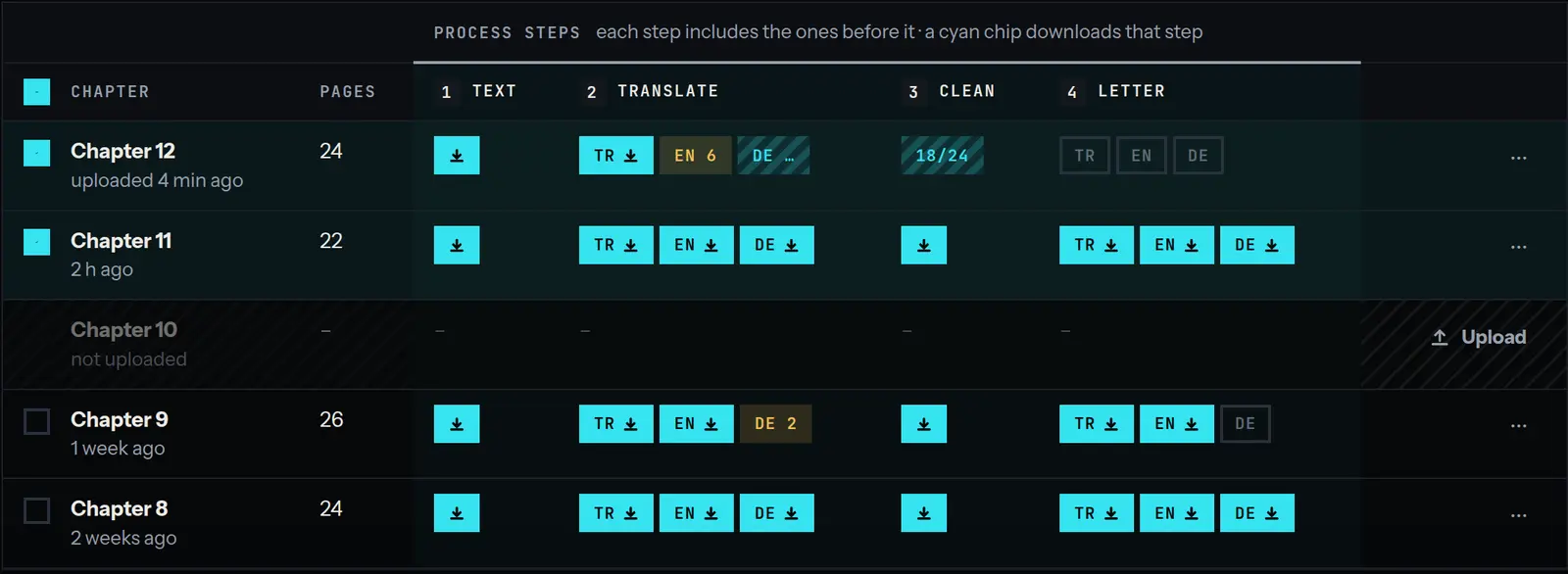
Two notices tell you where the chapter stands. The first says it “is translated”: the editor can be opened while the download is still being built. The second says it “is ready”.
Read it in the editor
Click the chapter’s name. The editor shows each page beside its script. The translation is a first draft from the model you picked, so read it through. Change any line that needs it, then letter the page again. Neither costs credits.
Download
Back in the table, click the cyan chip in the Letter column for a language. It downloads the lettered chapter as a CBZ. For another file, tick the chapter, press Download in the bar that appears, and choose it. Downloads are free. Exports lists every file.
A single page, without a project
For a one-off, open Quick translate in the sidebar. Pick the languages and how far to go, press Translate, and drop the files. The run starts at once. The result is listed under Recent on the same screen, and opens in the same editor.
Before chapter two
Put the names of the cast in the project’s glossary and lock them, so that they come out the same in every chapter.