Translation
Novels
Translate a novel chapter from pasted text or a file, and read it paragraph by paragraph beside the source.
A novel project takes text, not page images. There is no art to clean or letter, so a chapter is translated and then downloaded as a file.
Create a novel project
When you create a project, pick Novel under Type on the first step. The type is fixed once the project is created. Then pick the languages and the translation model. A novel project has no process step and no reading direction to choose.
Add a chapter
On the project’s chapter list, press Choose files. In the Upload chapter panel, paste the chapter into Chapter text, or press load a .txt or .docx under the box to fill it from a file. Leave a blank line between paragraphs, or put one paragraph on each line.
| What | Limit |
|---|---|
| Largest chapter | 200,000 characters. A book goes in chapter by chapter. |
| One page, for pricing | About 2,000 characters of source text |
| Price | 10 credits a page for each language, on the Standard model |
A counter under the box shows the characters used. Over the limit, the upload button is switched off: split the text into several chapters.
Formatting is not carried over. Italics, headings and images in the source come back as plain paragraphs.
Pages and what a chapter costs
A novel has no pages of its own, so the text is cut into pages of about 2,000 characters. The cut always falls between two paragraphs, never inside one. A chapter of 20,000 characters is about 10 pages: about 100 credits into one language, about 200 into two.
The panel shows the page count as you paste, and the upload button shows the most the chapter can cost, as up to a number of credits. Other translation models cost more a page. The model list shows each price. See Credits and plans.
Read it and change a paragraph
Open the chapter from the chapter list. Each paragraph has a number, the source text, and the translation in a box under it. The translation is a first draft from the translation model you picked, and a person should read it.
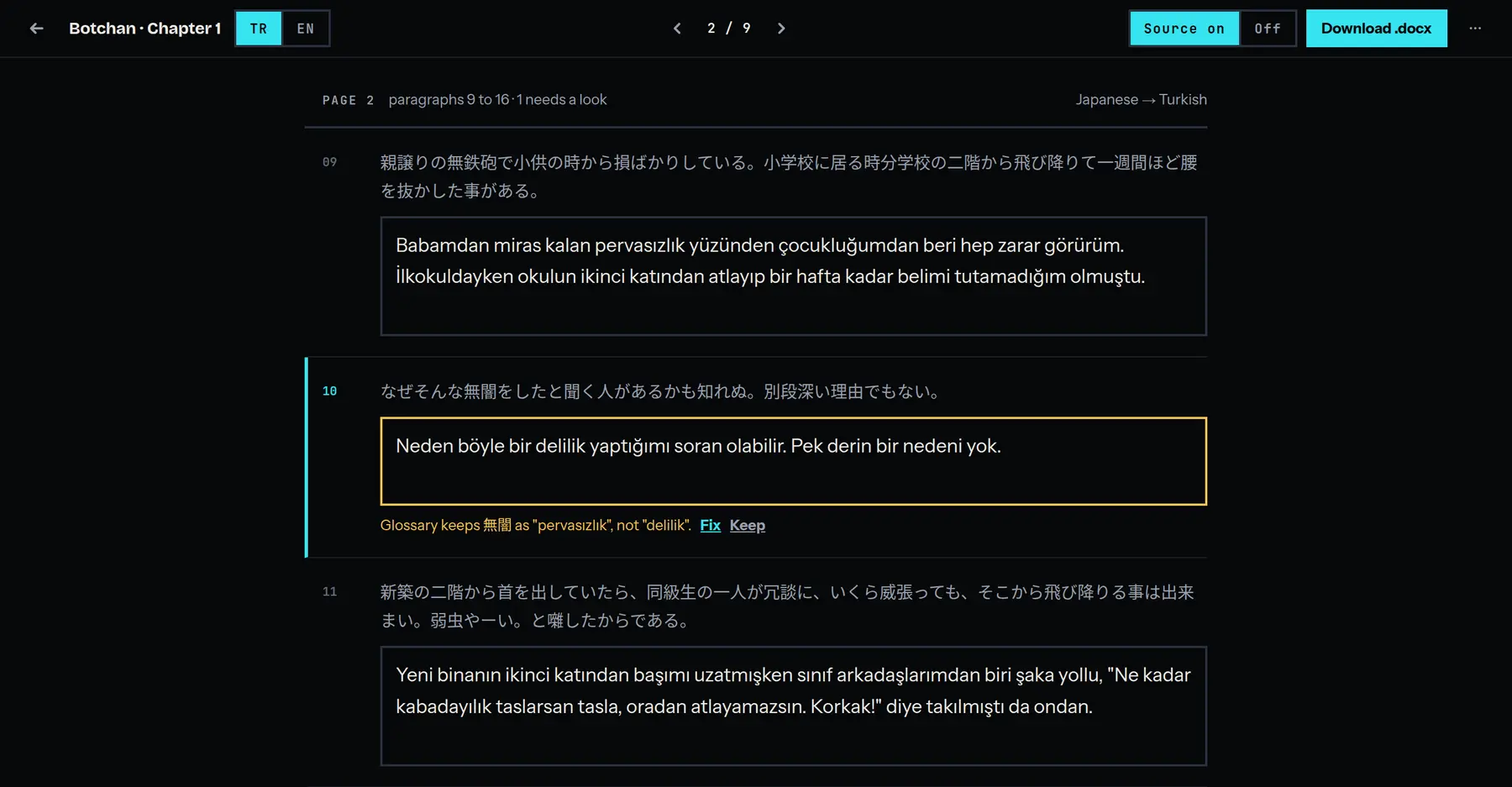
- To change a paragraph, click in its box and type. It saves as you type, and it is free.
- Source on and Off show or hide the source text.
- The language buttons in the bar switch between the project’s languages.
- The paragraphs are grouped by page. Next page at the foot moves on.
- A paragraph with no translation yet offers Translate it for me. That costs credits.
The glossary
The glossary works the same way as for comics. Lock a name or a term once and every chapter is held to it. When a paragraph does not use a locked term, a note under it says what the glossary has. Fix drafts the paragraph again with the term, which costs credits. Keep leaves the paragraph as it is and hides the note. See Glossary and locked terms.
Download
Download .docx in the editor’s bar gives you the translated chapter as a Word document, in the language you are reading. The menu beside it lists every file: TXT, DOCX and Source TXT, the original text. On the chapter list, a finished language’s chip downloads its file too.
Downloading is free, as often as you like. See Exports.