Translation
Glossary and locked terms
Keep a name, an honorific or a coined term the same in every chapter and every language.
Every project has its own glossary, on the project’s Glossary tab. It fills as chapters are translated, so run your first chapter first.
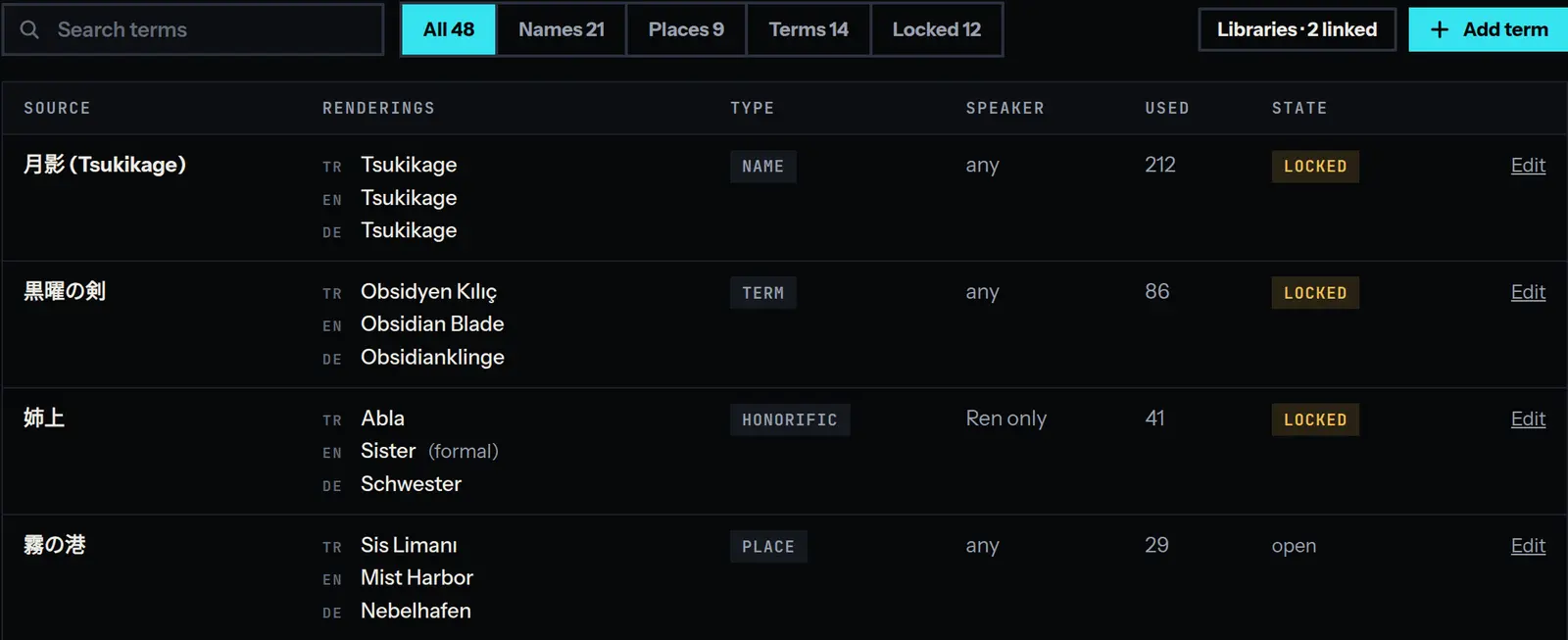
What a term is
A term is a word or a short phrase from the source (a name, a place, an honorific, a coined word) with one rendering for each language the project translates into.
New translations use every term in the glossary. Lines already written keep the wording they have.
The table shows each term’s Type, its Speaker (any, unless the term is for one speaker’s lines only), how many lines use it, and its State: open, to review or locked. The buttons above the table narrow it by type, or to Locked terms.
Add or change a term
Press Add term, type the phrase, and give it a rendering in every language of the project. The app may fill the fields in from how your chapters already translate the phrase, and marks those new. Change anything, then press Enter.
In the editor, select the phrase in a line and press T, or choose Add term from the ⋯ menu.
To change a term, click its row. It opens beside the table with its renderings and the chapter lines that hold it. Type a new rendering and press Enter.
Review what your chapters filed
When a chapter is translated, names and terms from it are filed in the glossary, each with a rendering filled in from the translation. Until a person confirms them they are tagged new, and a banner counts them. Press Review renderings to go through them one term at a time, each rendering above the chapter lines that hold it.
- Confirm (Enter) saves the renderings as the fields stand and moves on.
- Skip (S) leaves the term for later.
- Lock these locks the term as you confirm it.
Lock a term
Open a term and press Lock. Every later run is held to that rendering.
A line that still breaks a locked term is flagged for review. In the editor a note under the line gives the rendering the glossary asks for, with two choices:
- Fix translates that line again. It is charged as the translation step of one page: 2 credits for a comic on the Standard model.
- Keep leaves the line as it is and hides the note for this visit.
Bring older chapters in line
Changing or locking a term does not touch lines that are already translated. To apply today’s glossary to a finished chapter, open it in the editor and choose Re-apply Glossary… from the ⋯ menu. The chapter is translated again in the language on screen.
- It costs up to 3 credits a page for a fully translated comic on the Standard model: the translation and the lettering again, not the reading or the cleaning. The menu shows the figure for your chapter. See credits and plans.
- Lines you approved or edited by hand are kept. A page where every line is one of those is not charged.
For a plain rename, Find & Replace… in the same menu changes the word in every line of the chapter without translating again, at no charge.
Libraries: one glossary for several projects
A library is a glossary that projects share. Open Libraries in the sidebar, press New library, and add terms as you would in a project. Two are built in and read only: Japanese honorifics and Korean honorifics.
To link one, open the project’s glossary, press Libraries, choose it under Add a library and press Add. It applies to the next translation. Chapters already translated do not change.
When two sources define the same term, the one higher in that list wins. The project is always first, so a project term beats a library term. Before you add a library, the dialog lists its terms that the project already defines: nothing is overwritten. If the library changes one of them later, the term shows up under Conflicts, where you choose Keep ours or the library’s rendering.
Novels
The glossary works the same way for novels: the same tab, the same review, the same locks, and the same note under a paragraph that breaks one.