Chapters
The editor
Read a page beside its script, change a line, and letter the page again.
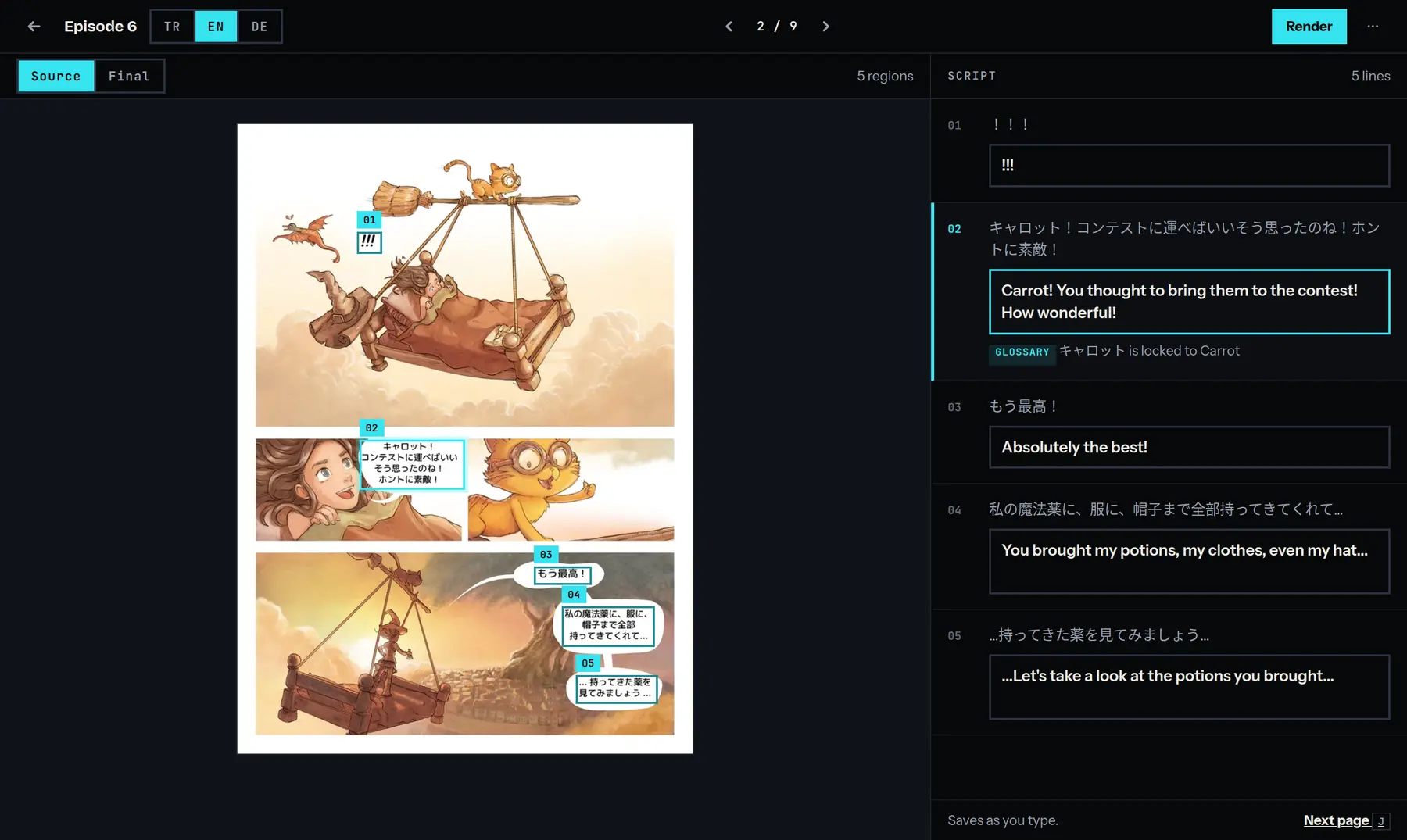
The editor shows a whole chapter: its pages on the left, its script on the right. It changes the translation and the lettering. It does not redraw the art, and the boxes on the page cannot be moved.
Open a chapter
In a project’s chapter table, click the chapter’s name, or pick Open in editor from the menu at the end of its row. While the chapter is being read, or the language on screen is being translated, the editor is locked.
The page and the script
Every piece of text on the page has a numbered box. Script lists the same numbers page by page: the original text, and under it a field with the translation. Click a box or a line and both are selected.
Above the page, Source shows the page as uploaded and Final shows it lettered. On a project that stops at cleaned pages the second view is Cleaned. A project that stops earlier has the source only.
Switch language and page
The bar at the top has a button for each target language, such as EN. Switching changes the translation you see, not the page. A number beside a language counts the lines with no translation in it yet.
The arrows beside the page counter move a page at a time.
Change a line
Type in the line’s field. The foot of the script reads Saves as you type., and Saving… while a change is on its way. This is free.
Change the kind of text
On a project that letters its pages, the selected line has a menu beside its original text: Bubble, Thought, Shout, Scared, Monster, SFX, Caption, Sign, Narration, System or Note. The kind decides the lettering face, so the face follows your choice.
Lines that need a look
The head of the script counts them, as in “3 lines need a look”. A line is counted when:
- it has no translation in this language. The note reads No EN line yet. Type one, or click Translate it for me;
- it is too long for its balloon. The note reads Overset: too long for its balloon. Shorten the line;
- it does not use a locked glossary term, as below.
When you have read a language through, click Mark EN done in the ⋯ menu. Reopen EN takes that back.
Glossary notes
A note under a line that begins Glossary says names a term and the wording the glossary locks it to. The line does not use that wording.
- Fix translates the line again with the term held. The new draft replaces what is in the field.
- Keep hides the note for this visit. It is back the next time you open the chapter.
Translate one line again
Translate it for me and Fix each draft one line for you, and each is charged as the translation step of one page. For a comic that is 2 credits on the Standard model, and more on a model with a higher price. See credits and plans.
Letter the page again
After you change a line or its kind, Final sets that page aside until it is lettered with the new text. Click Render on the bar: every changed page is lettered again. Nothing is downloaded and it costs nothing, however often you do it. The button is off when every page is up to date.
A download letters the changed pages too.
The ⋯ menu
The ⋯ button holds what is about the whole chapter: Assigned, Glossary, Add term, the downloads, Find & Replace…, Bulk Accept…, Re-apply Glossary… with its price beside it, and Re-flow reading order.
Keyboard shortcuts
Press ? for the list in the app. The single keys work when the cursor is not in a field. Hold Ctrl or ⌘ and turn the wheel to zoom the page.
| Key | What it does |
|---|---|
Ctrl or ⌘ + Enter | Saves the line now |
J or Tab | Next line |
K | Previous line |
T | Starts a glossary term from the selected phrase |
+ and - | Zoom the page in and out |
See also how to typeset a manga page.